☕ Help us keep WTS free & accessible—buy us a coffee
☕ Help us keep WTS free & accessible—buy us a coffee

Author: Laura Vaduva
Last updated: 10/06/2025

As an SEO Specialist, one of my biggest struggles is analysing large sets of data to identify top performing pages or keywords while being on the lookout for growth opportunities.
Excel is (and always has been) an SEO’s best friend, but when it comes to identifying patterns the tasks can become overwhelming and time consuming.
In this case, RegEx formulas are the best alternative to consider – and the fastest! Let’s see what RegEx is and how I leverage it to make my life as an SEO much easier.
Barry Schwartz defines RegEx (or regular expressions) as “a sequence of characters that define a search pattern. Usually, such patterns are used by string searching algorithms for “find” or “find and replace” operations on strings, or for input validation.” In this Search Engine Land article about RegEx, Barry also states that “RegEx can be super powerful and fast in filtering data and even for replacing data, but it can also be tricky to get right”.
Dan Taylor explained in a RegEx for SEO SEJ article that “Regular expressions, or ‘RegEx’, are like an in-line programming language for text searches that allow you to include complex search strings, partial matches and wildcards, case-insensitive searches, and other advanced instructions.”
RegEx can be used to identify any series of characters e.g.: a phone number, a search query, an URL or even a product reference number. As an SEO, I find RegEx to be one of the most useful tools I can use to match, manage, or filter data.
For example, this RegEx string (what|where|when|how|who) matches any one of the words "what", "where", "when", "how", or "who".
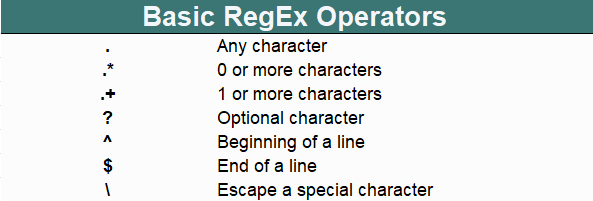
A list of the basic RegEx Operators.
There are numerous comprehensive RegEx guides available, such as: Regular Expression Language - Quick Reference by Microsoft, Regular expressions by Mozilla, Using Regular Expressions by Oracle.
However, to be completely honest with you, there are only a handful of formulas I use in my day-to-day SEO role. I’ve included them in the RegEx Cheat Sheet below, and I hope it’ll make your life just a bit easier 😀
Formula for Branded Terms: .*domain name.*domain.*name.*dm.*
Formula for Informational Terms: who|what|when|why|how|can|tips|guide|instructions|list|explained|for beginners|meaning|definition|types|uses|best|steps|tutorial|example|benefits
Formula for Questions: what|where|when|how|who:
Formula for Location Specific Terms: \b(near\s+me|in\s+madrid|nearby|in\s+salamanca)\b
Formula for LSI (Latent Semantic Indexing) keywords: \b(Apple|iOS|iPhone|MacBook|AirPods|iPad)\b
Formula for Category Pages: (https://companyname.com/.*/)
Formula for URLs containing one specific word: \/word\b
Formula for URLs that include this or that: (keyword1|keyword2)
Formula for URLs that exclude this or that: (?!.*\/(keyword1|keyword2))
The risk of error can be high with RegEx formulas. So, before using any formula, I always test it first. Here is a list of free RegEx tools you can use to test your formulas:
I use Tracking Plan’s RegEx tester as I find it quicker and more intuitive than some of the other tools out there.
Here is how it works:


Two validation examples using Tracking Plan’s Online ReGex tester. Green indicates a valid pattern, red indicates an invalid pattern.
Source: Online Regex Tester: Validate and Test Your Regular Expressions Easily
Using RegEx can be tricky, especially when you’re just starting out. If you’re using RegEx in GA4, here are some tips from Google which I’ve found useful:
1. Keep your RegEx simple
This makes it easier for me (and anyone I collaborate with) to interpret, modify and repurpose.
2. Use the backslash (\) to escape RegEx metacharacters
I find this an extremely useful practice when I need those characters to be interpreted literally.
3. Use metacharacters to limit the match
The default RegEx behaviour Google uses is called “partial match”. This means that your RegEx pattern can be found anywhere within the data.
“Specific match” is different from “partial match”. For “specific match”, construct the RegEx accordingly: For example, if I only want to identify instances of “where”, the RegEx I use is ^where”$. This way, my RegEx won’t include other words that contain “where”, such as “anywhere” or “wherever”.
Find more tips and suggestions in Google’s GA4 documentation: [GA4] About Regular Expressions (RegEx)
Now let’s have a look at how to use RegEx formulas in our day-to-day work.
For this, I’ve included some use cases for creating segments in GA4, for data filtering in Google Search Console, and report building in Looker Studio. Let’s go!
I find RegEx useful in GA4, especially for creating segments & audiences.
At times, I prefer to have an overview of all organic traffic, regardless of the search engine the visitor used. For this reason, I create a user segment that includes both Google & Bing.
Here is how I do it:
Step 1: Go to GA4 – Explore – Blank
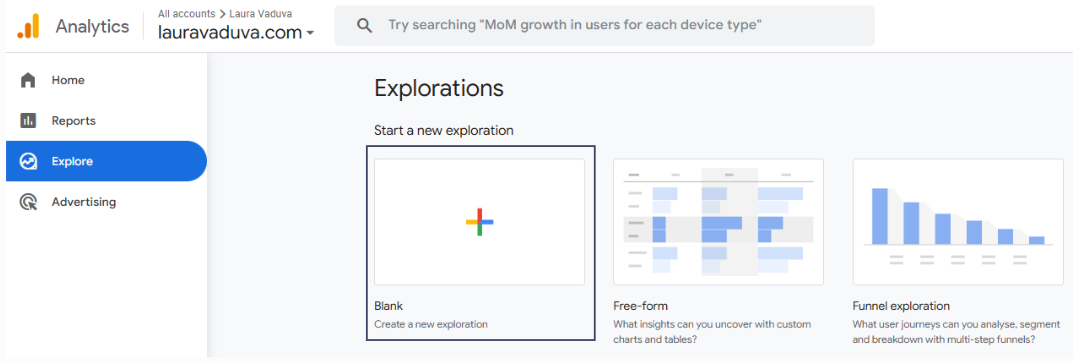
A screenshot from GA4. In the Explore tab, “Blank - Create a new exploration” is selected.
Step 2: Segments – Create a new Segment
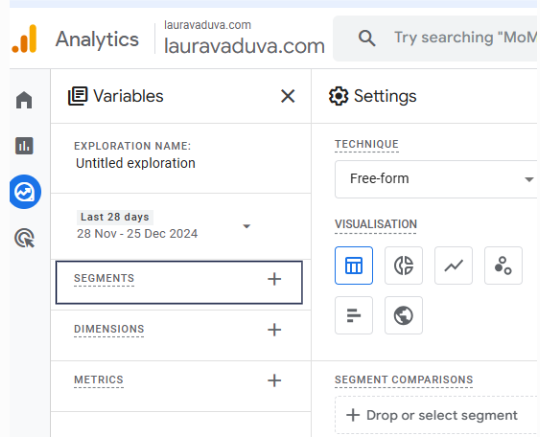
A screenshot from GA4. On a new ”Untitled exploration”, the variable “Segments” is selected.
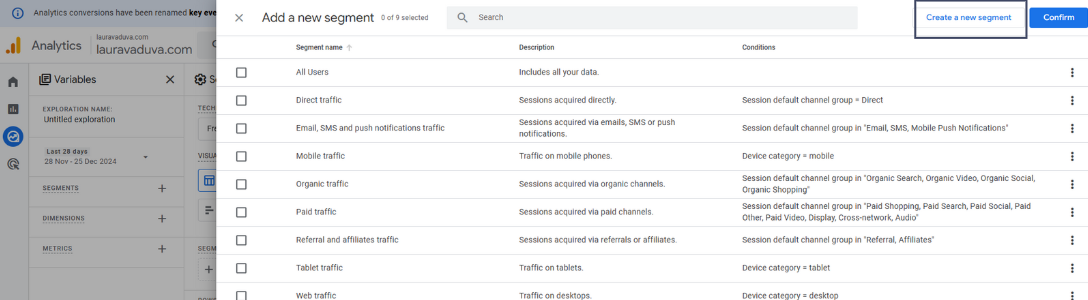
A screenshot from GA4. On a new ”Untitled exploration”, under variable “Segments”, “Create a new segment” is selected.
Step 3: Build new segment – Session segment
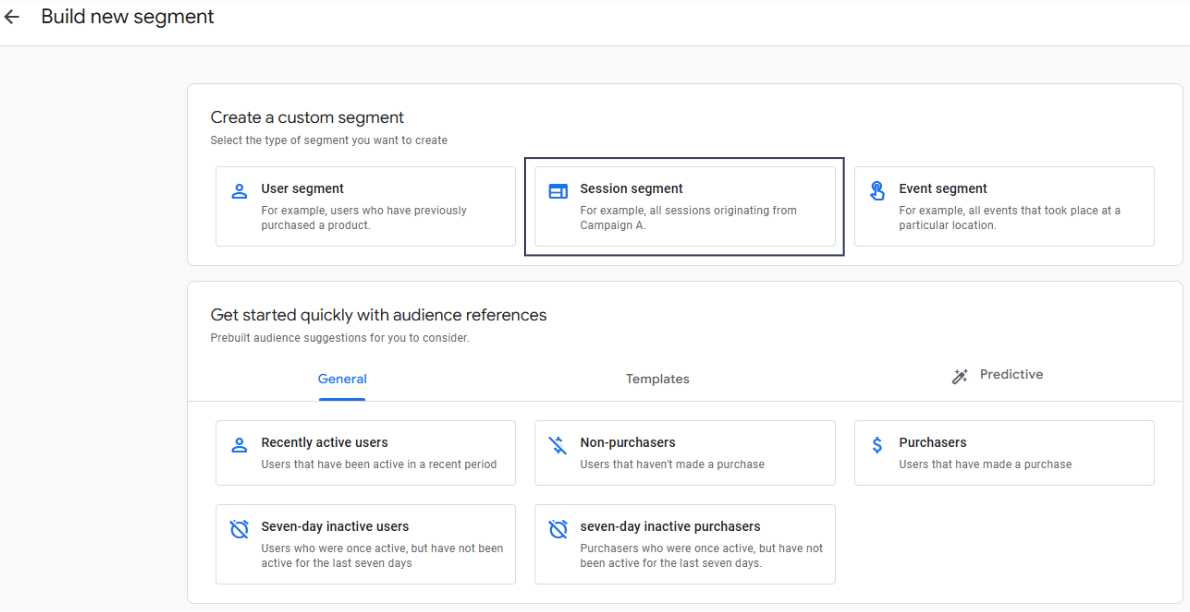
A screenshot from GA4. On a new ”Untitled exploration”, a new session segment is created.
There are three different types of segments in the GA4 Segment Builder: User segment, Session segment and Event segment.
For this example, I’ll be focusing on the Session segment, which captures all the sessions that originated from organic search.
Step 4: Build new segment – Session segment
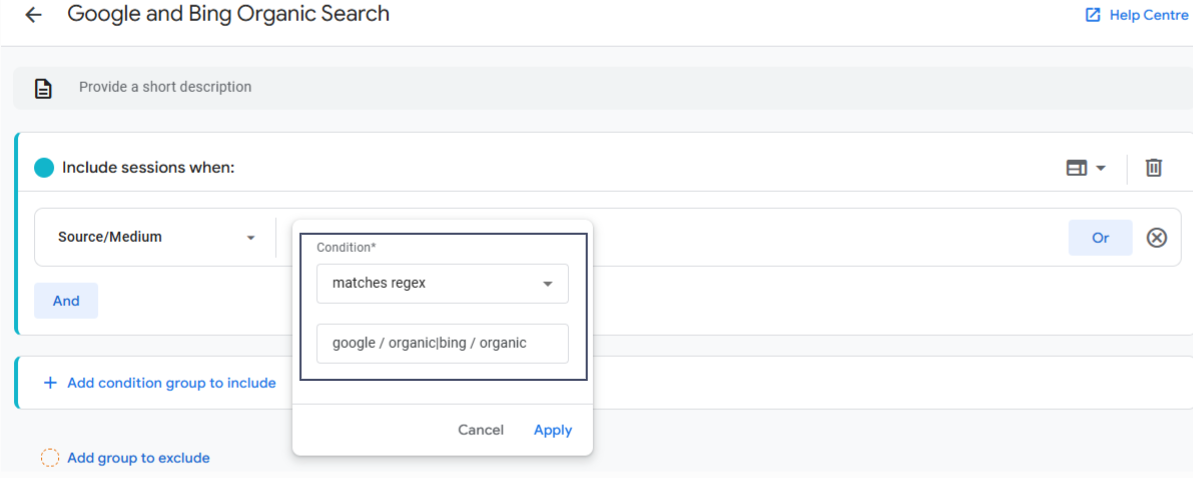
A screenshot from GA4. A new segment for organic traffic in Google and Bing is created using RegEx
Here, the first thing I do is name the Untitled Segment. Here, the name I’ve chosen is Google and Bing Organic Search.
Then, I update each field according to my needs. Here, I want to include sessions when the Source/Medium matches my condition. My condition is matches regex, and the RegEx formula is google / organic|bing / organic.
As a result, I will see all traffic (sessions) coming from either Google or Bing.
I find RegEx extremely useful when I need to filter keywords in Google Search Console. A common use case for me is filtering branded & non-branded queries.
With RegEx, I include multiple variations of branded search terms e.g.: brand name, partial brand name, abbreviations, and typos.
For example:
Here is what I do to filter branded terms in Google Search Console:
Step 1: Go to Google Search Console – Performance – Add Filter – Query
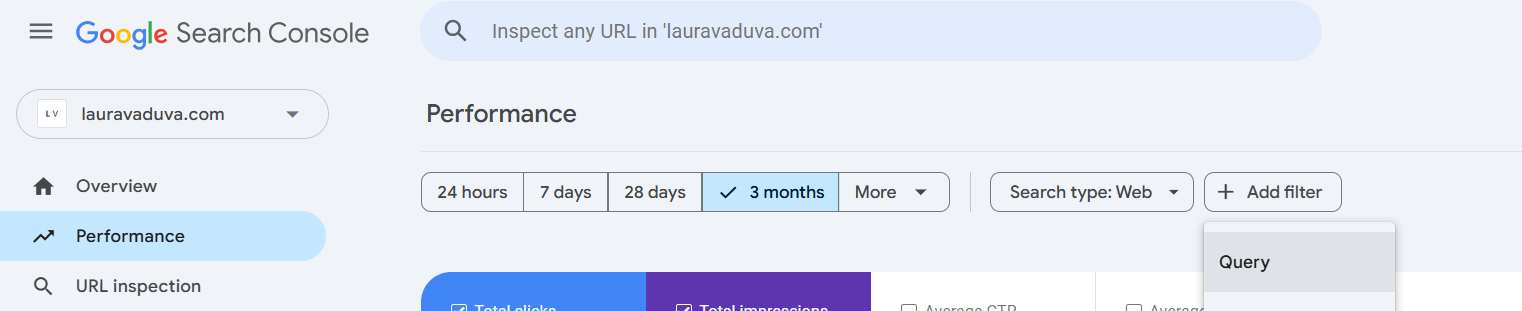
A screenshot from Google Search Console. In the Performance tab, under “Add Filter”, “Query” is selected.
Step 2: Click on Query – Custom (regex)
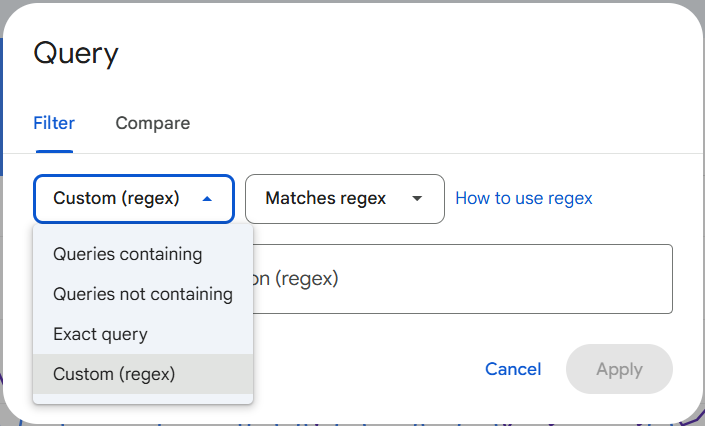
A screenshot from Google Search Console. In the Performance tab, under the Query Filter, “Custom (regex)” is selected.
Step 3: I use Matches regex for branded terms) & Doesn’t match regex (for non-branded terms)
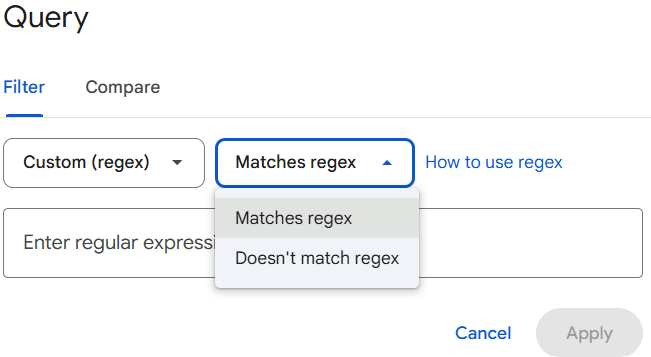
A screenshot from Google Search Console. In the Performance tab, under the Custom (regex) Query Filter, “Matches regex” is selected.
You can also apply the same logic when filtering URL patterns in Google Search Console. If you’d like to do this, choose Page:
Then, click on Custom (regex) and select:
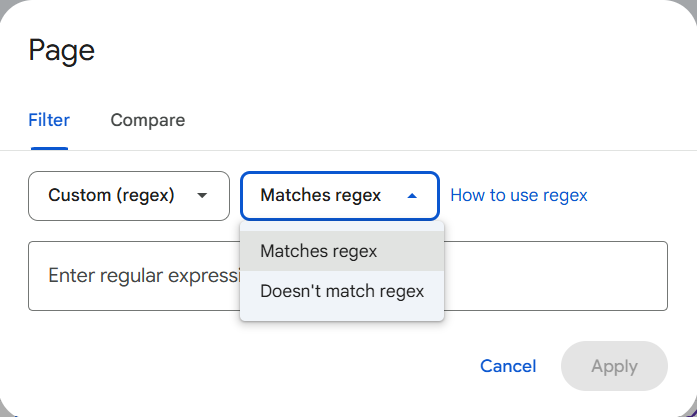
A screenshot from Google Search Console. In the Performance tab, under the Custom (regex) Page Filter, “Matches regex” is selected.
Don’t forget to test your formula first!
Looker Studio (formerly known as Google Data Studio) is a tool which you can use to convert data from various sources (such as Google Data Studio or Google Analytics) into interactive reports and dashboards. For me, it is especially useful for data visualisation, trends over time, period-versus-period comparisons and scorecards for my main target KPIs.
Regular expressions in Looker Studio are commonly used for creating custom filters and reports. There are 4 main formulas available: REGEXP_CONTAINS, REGEXP_EXTRACT, REGEXP_MATCH, REGEXP_REPLACE.
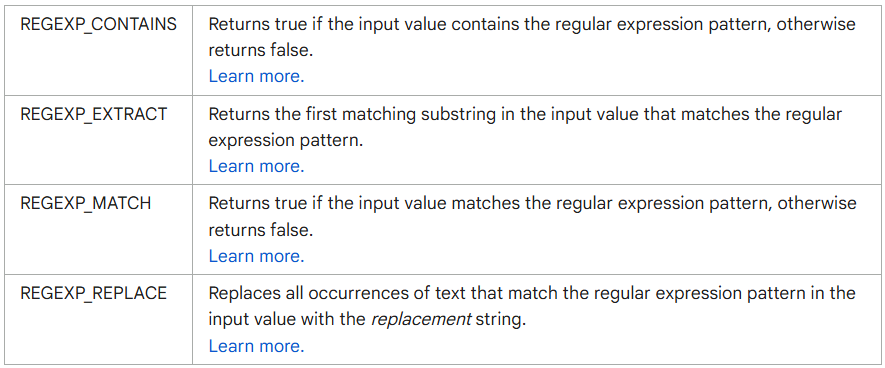
The main regular expressions formulas available in Looker Studio. A screenshot from the Google Cloud Documentation.
Source: Regular expressions in Looker Studio
In practice, the formulas I use most frequently are REGEXP_MATCH and REGEXP_CONTAINS.
I like to create an overview of SEO performance split out by the following page levels: ‘Category’, ‘Subcategory’, and ‘Article’.
Let’s say our website follows this URL Structure: https://companyname.com/category/subcategory/article
Here is the Looker Studio Custom Filter Formula using RegEx:
CASE
WHEN REGEXP_MATCH(Landing Page, 'https://companyname.com/.*/.*/.*/.*') THEN 'Article'
WHEN REGEXP_MATCH(Landing Page, 'https://companyname.com/.*/') THEN 'Category'
WHEN REGEXP_MATCH(Landing Page, 'https://companyname.com/.*/.*/') THEN 'Subcategory'
WHEN REGEXP_MATCH(Landing Page, 'https://companyname.comLanding Page/$') THEN 'Home Page'
ELSE 'Other'
END*
To create a Custom Filter in Looker Studio:
Step 1: Add Data Source
In this case, I add Google Search Console
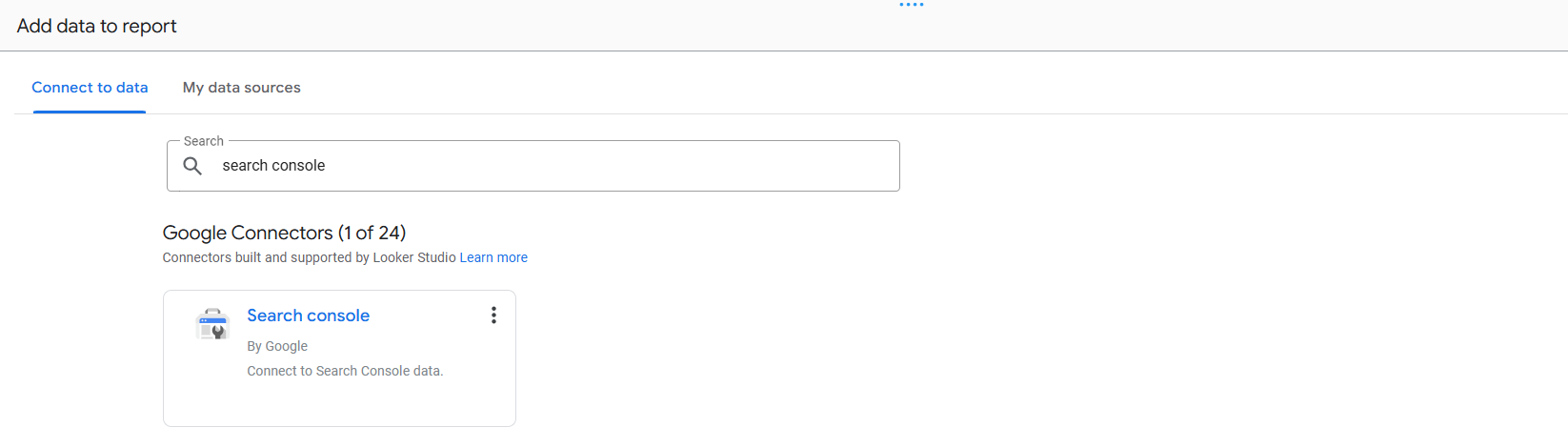
A screenshot from Looker Studio. In the Add Data Source section, “Google Search Console” is selected.
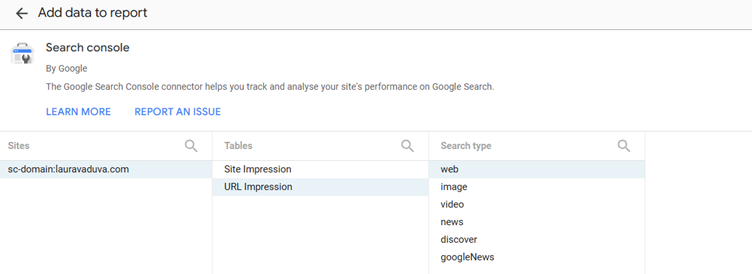
A screenshot from Looker Studio. In the Add Data Source section, Google Search Console, the source domain, Tables (URL Impressions) and Search type (web) are selected.
Step 2: Add Field
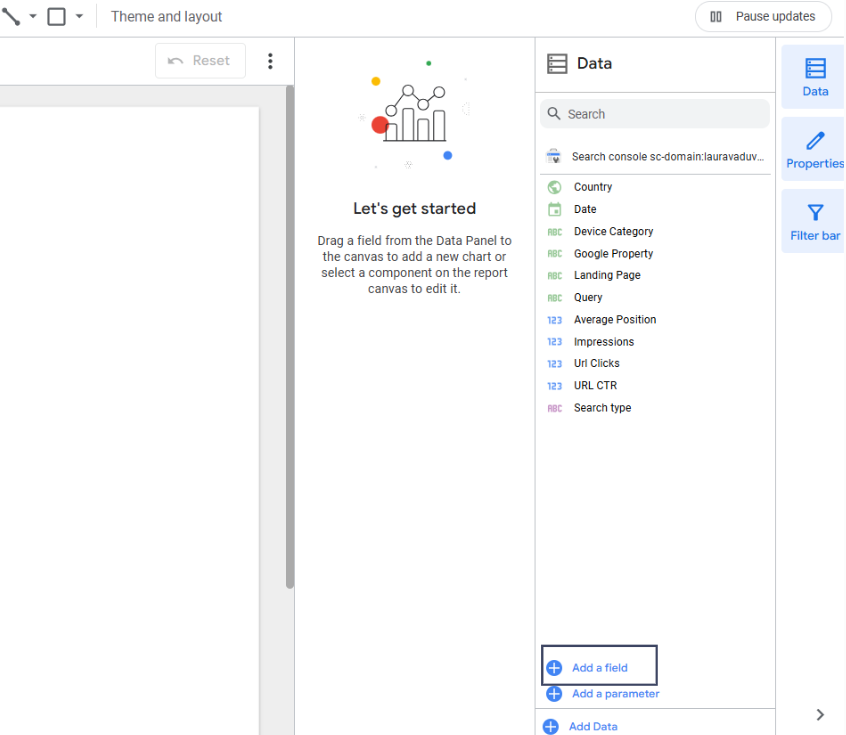
A screenshot from Looker Studio. In the Data section for Google Search Console as a source, “Add a field” is selected.
Step 3: Add calculated field (this is the custom filter)
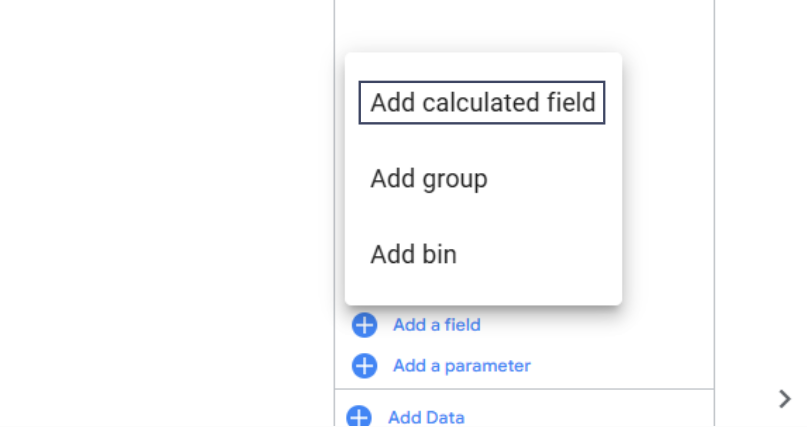
A screenshot from Looker Studio. In the Data section (source: Google Search Console), under “Add a field”, “Add calculated field” is selected.
Step 4: Name the custom field
Here I add the RegEx Formula previously created:
CASE
WHEN REGEXP_MATCH(Landing Page, 'https://companyname.com/.*/.*/.*/.*') THEN 'Article'
WHEN REGEXP_MATCH(Landing Page, 'https://companyname.com/.*/') THEN 'Category'
WHEN REGEXP_MATCH(Landing Page, 'https://companyname.com/.*/.*/') THEN 'Subcategory'
WHEN REGEXP_MATCH(Landing Page, 'https://companyname.comLanding Page/$') THEN 'Home Page'
ELSE 'Other'
END
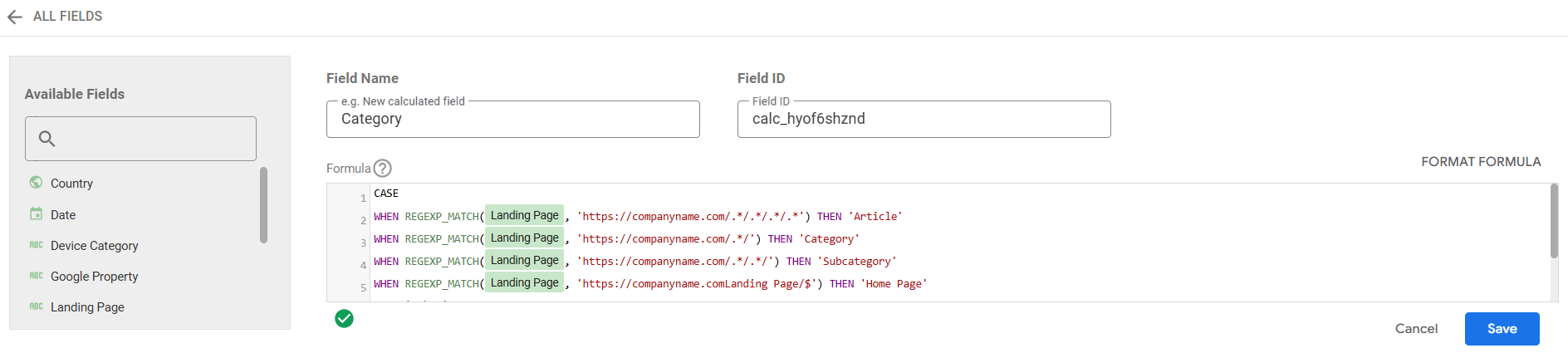
A screenshot from Looker Studio. In the Data section (source: Google Search Console) under “Add calculated field”, a new “Category” field is created.
Step 5: Save & finish!
In GA4, it is possible to identify page titles that contain a specific keyword (string pattern) using RegEx. I find this useful to categorize pages based on the keyword(s) used in the page title. Let’s say I want to identify all page titles that start with the string “SEO”. Here is the Looker Studio Formula I’d use:
REGEXP_CONTAINS(page title , "^seo|^seo.*")
To create a Custom Filter in Looker Studio for GA4 Data follow the steps below:
Step 1: Add Data Source
In this case, I add Google Analytics 4
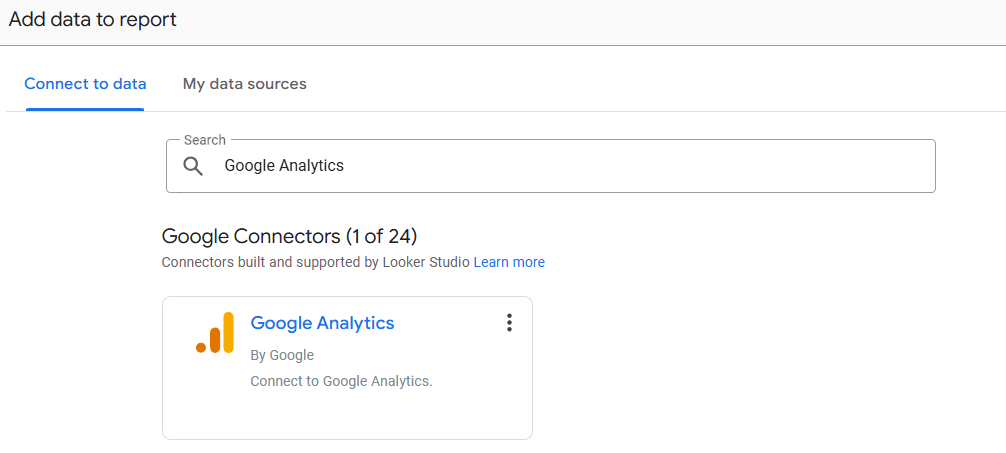
A screenshot from Looker Studio. In the Add Data Source section, “Google Analytics” is selected.
Step 2: Add Field
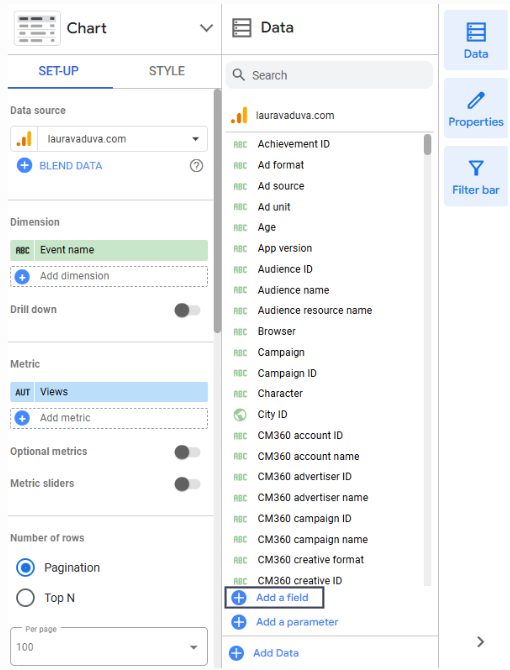
A screenshot from Looker Studio. In the Data section for Google Analytics as a source, “Add a field” is selected.
Step 3: Add calculated field (this is the custom filter)
Step 4: Name the custom field. For example (SEO Title)
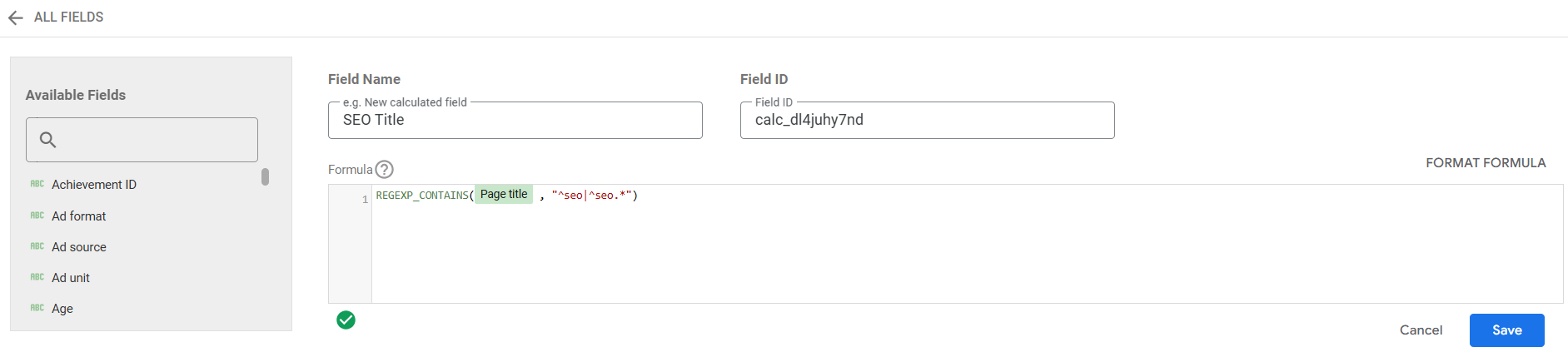
A screenshot from Looker Studio. In the Data section (source: Google Analytics) under “Add calculated field”, a new “Page Title” field is created.
Step 5: Save & finish
Not sure how to create a formula? Don’t worry! ChatCPT can help. As before, don’t forget to test your formula first!
Here are some examples of ChatGPT prompts you can use:
Prompt: Create a RegEx formula for Google Search Console that can find all search queries which include the words: download, subscribe, enroll, buy, order
Result Formula: \b(download|subscribe|enroll|buy|order)\b
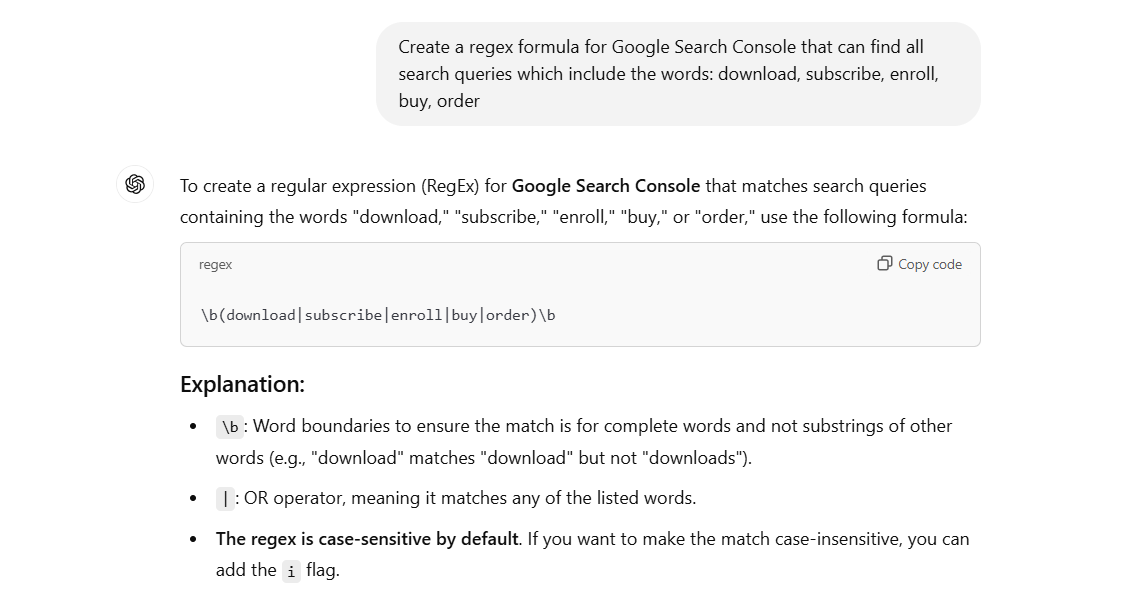
A screenshot from ChatGPT. Example of a prompt and results for a request to generate a RegEx formula for specific queries.
Prompt: Create a RegEx for Google Search Console to find all search queries between 1 and 4 words.
Result: ^(\w+(\s+\w+){0,3})$
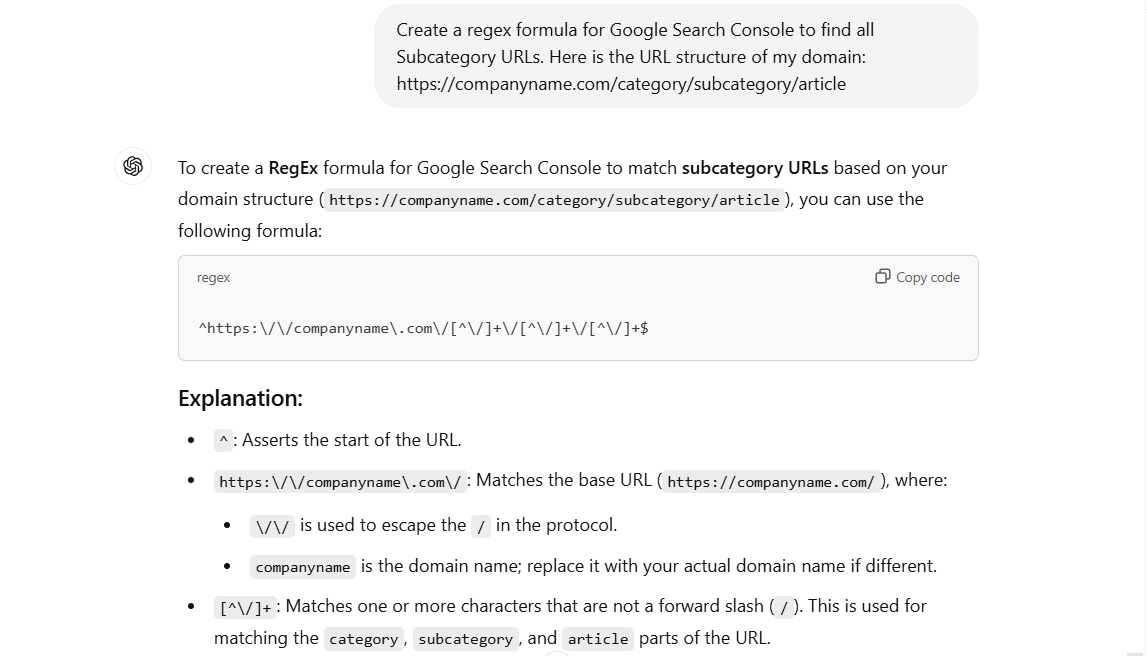
A screenshot from ChatGPT. Example of a prompt and results for a request to generate a RegEx formula for a specific query length.
Prompt: Create a regex formula for Google Search Console to find all Subcategory URLs. Here is the URL structure of my domain: https://companyname.com/category/subcategory/article
Result Formula: ^https:\/\/companyname\.com\/[^\/]+\/[^\/]+\/[^\/]+$
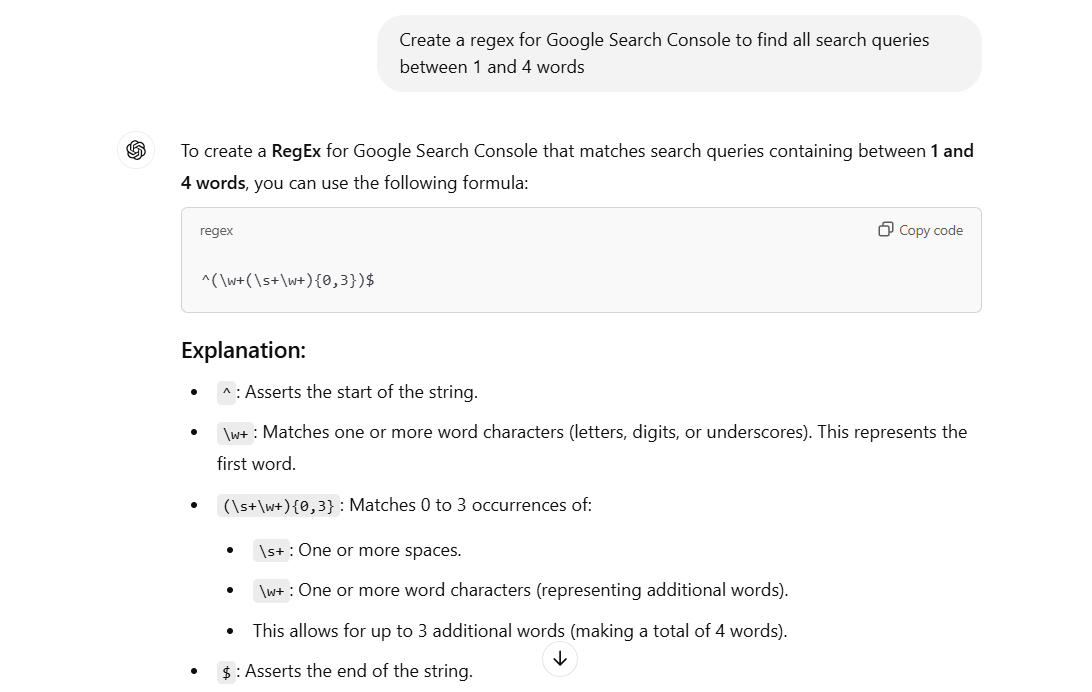
A screenshot from ChatGPT. Example of a prompt and results for a request to generate a RegEx formula for a specific page type (URL format).
From analysing large data sets and extracting patterns, to creating custom reports, RegEx can be crucial for us SEOs. Whether we’re filtering keywords in Google Search Console, creating new segments in GA4, or building cleaner dashboards in Looker Studio, the use of regular expressions can provide great insights.
However, it can still be quite overwhelming at first. But with patience, curiosity, and a bit of help from GEN AI tools, you’ll master it in no time! 😊
ZipSprout connects brands with local nonprofits and events to build sponsorship links that drive local SEO and community impact.
Since 2016, they’ve facilitated 25,381 placements with community organizations across the US, raising over $9.2M in sponsorships.

We pay our authors, speakers & team to bring you helpful content like this.
We aim to always keep our content and community free and accessible.
If you've found value in WTS, please consider supporting us through our Buy Me a Coffee initiative.